
Foundation HTML, CSS + Javascript
Want to learn how to code? This is the perfect place to learn how to confidently make your own websites from scratch.


Taught by
Lawrence Gosset and Rik Lomas
Frequently Asked Questions
I’m interested in pursuing a career as a front end developer. Is this course for me?
I’m interested in pursuing a career as a front end developer. Is this course for me?
I’m pretty familiar with HTML and CSS, but am new to JavaScript. Should I take this course?
I’m pretty familiar with HTML and CSS, but am new to JavaScript. Should I take this course?
Is this like a coding bootcamp? Will it get me a job?
Is this like a coding bootcamp? Will it get me a job?
Do I need any prior knowledge of code?
Do I need any prior knowledge of code?
What will I be able to make after this course?
What will I be able to make after this course?
Can I use a different code editor instead of the SuperHi Editor?
Can I use a different code editor instead of the SuperHi Editor?
Do you have any sample videos of what the courses are like?
Do you have any sample videos of what the courses are like?
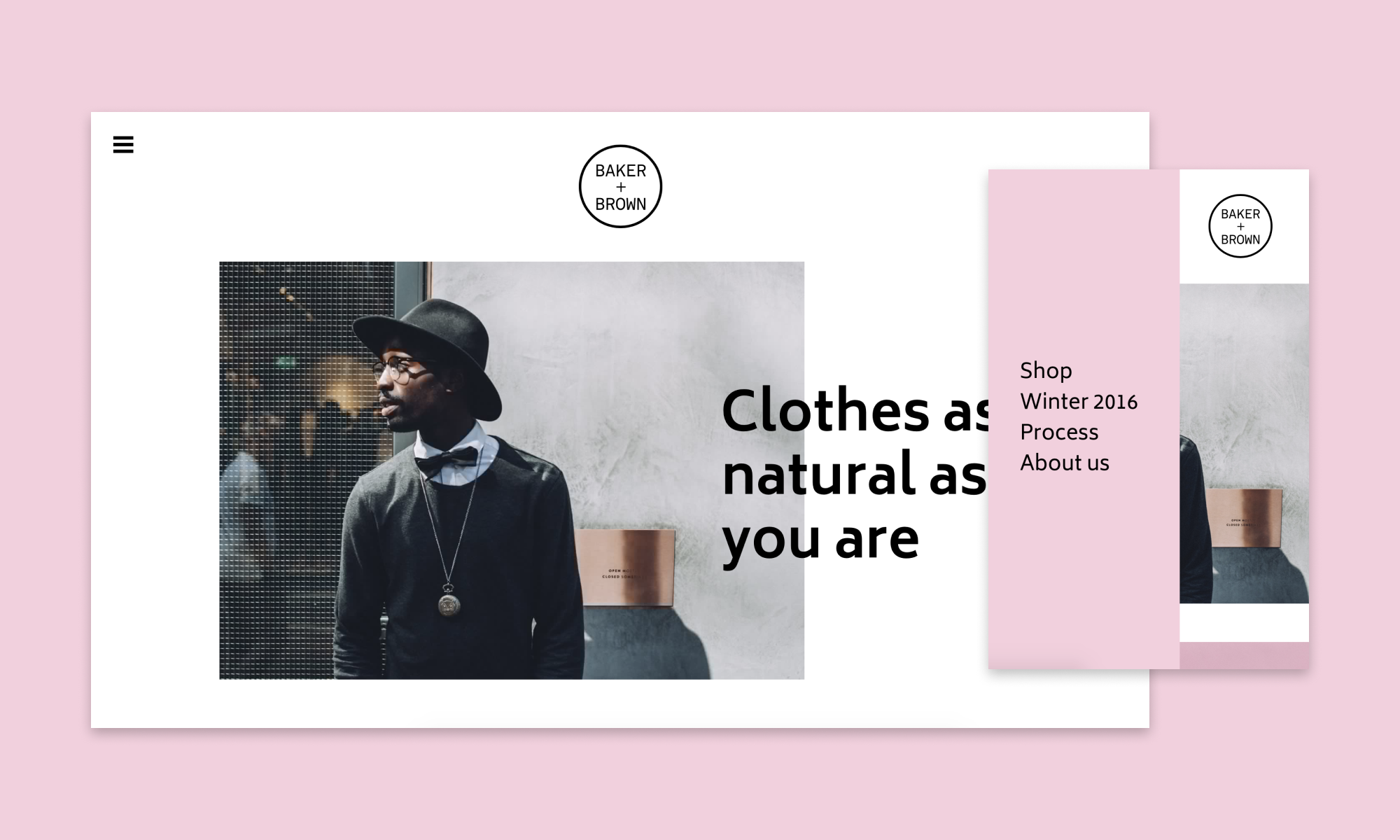
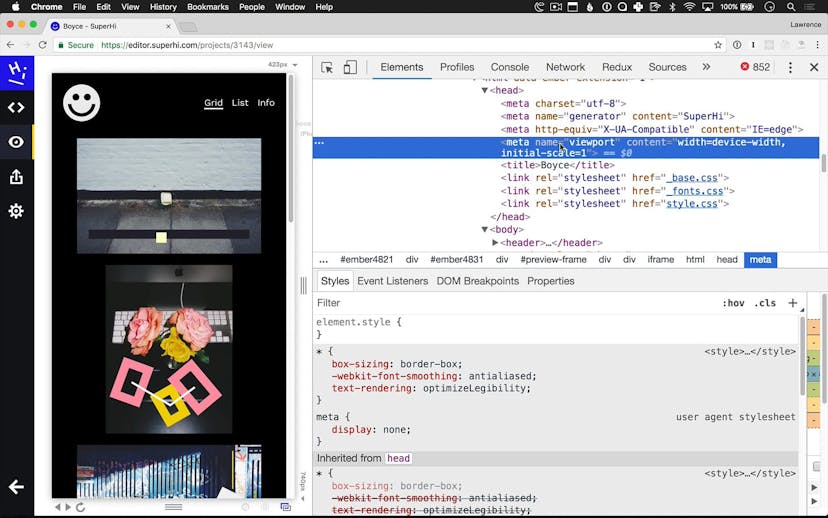
Do you teach responsive design?
Do you teach responsive design?
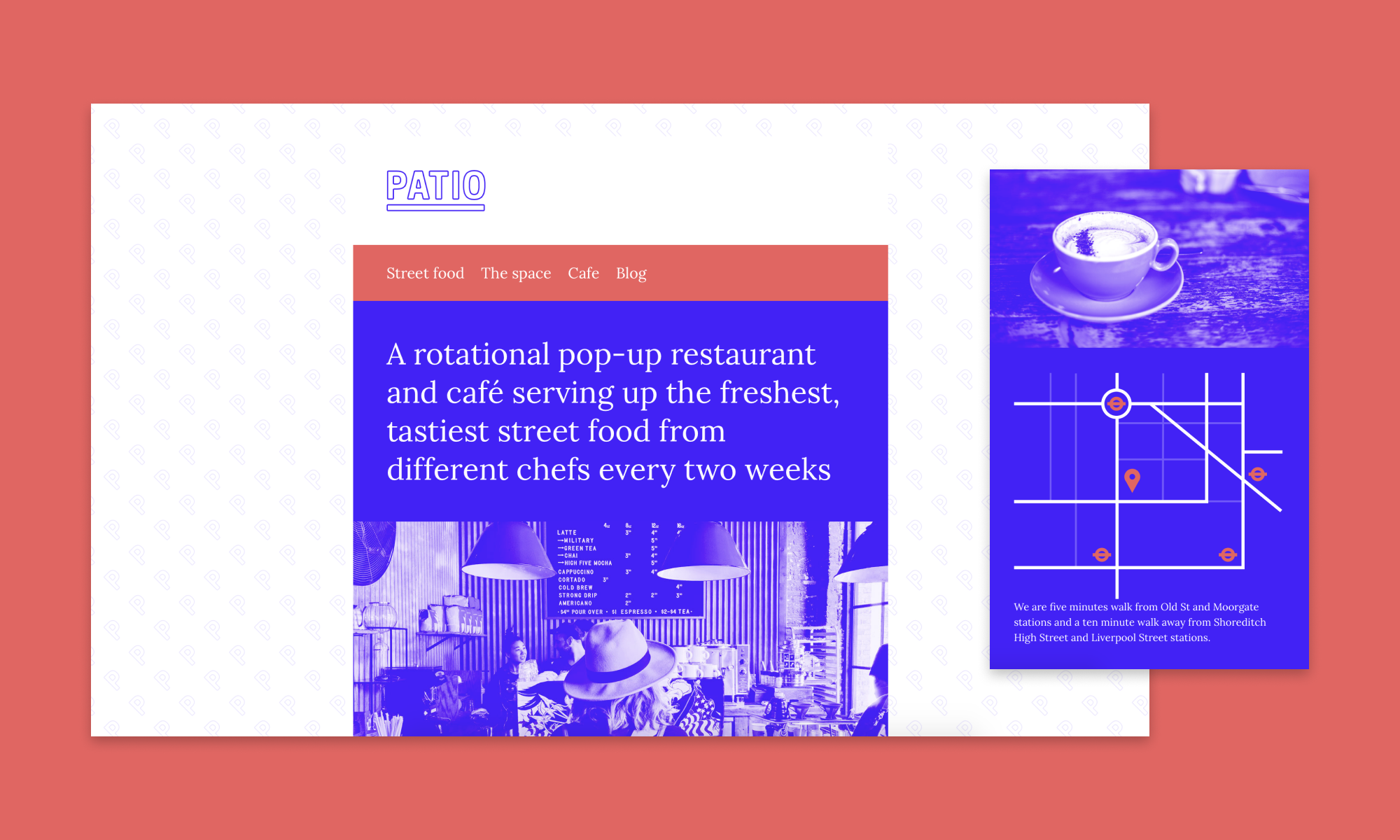
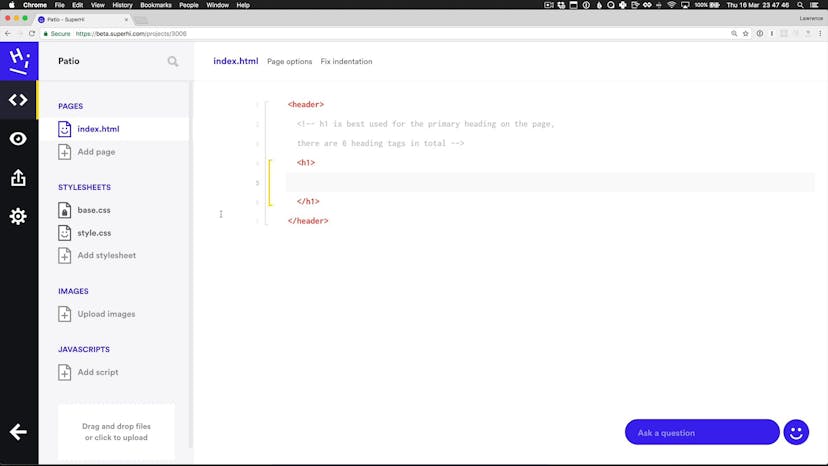
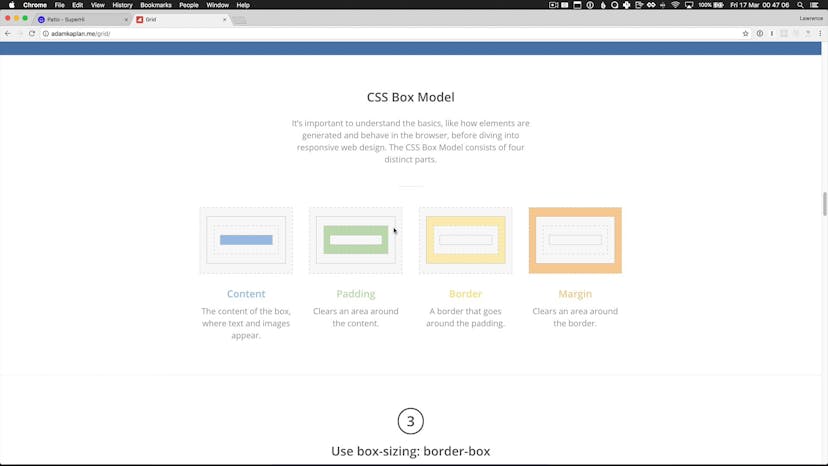
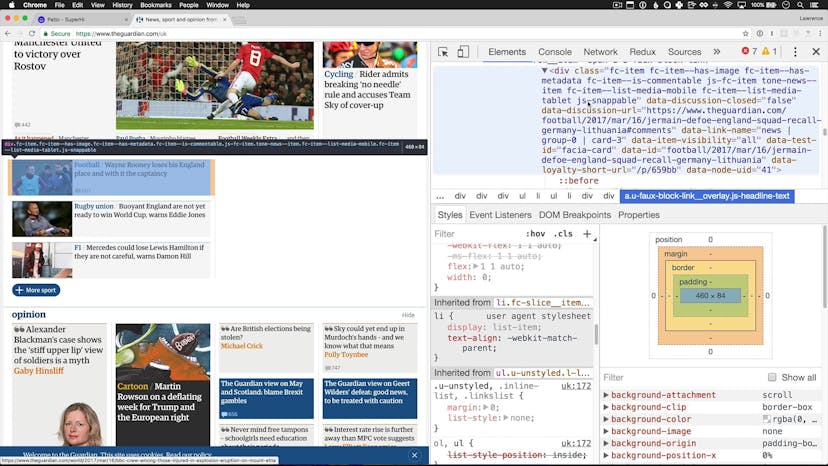
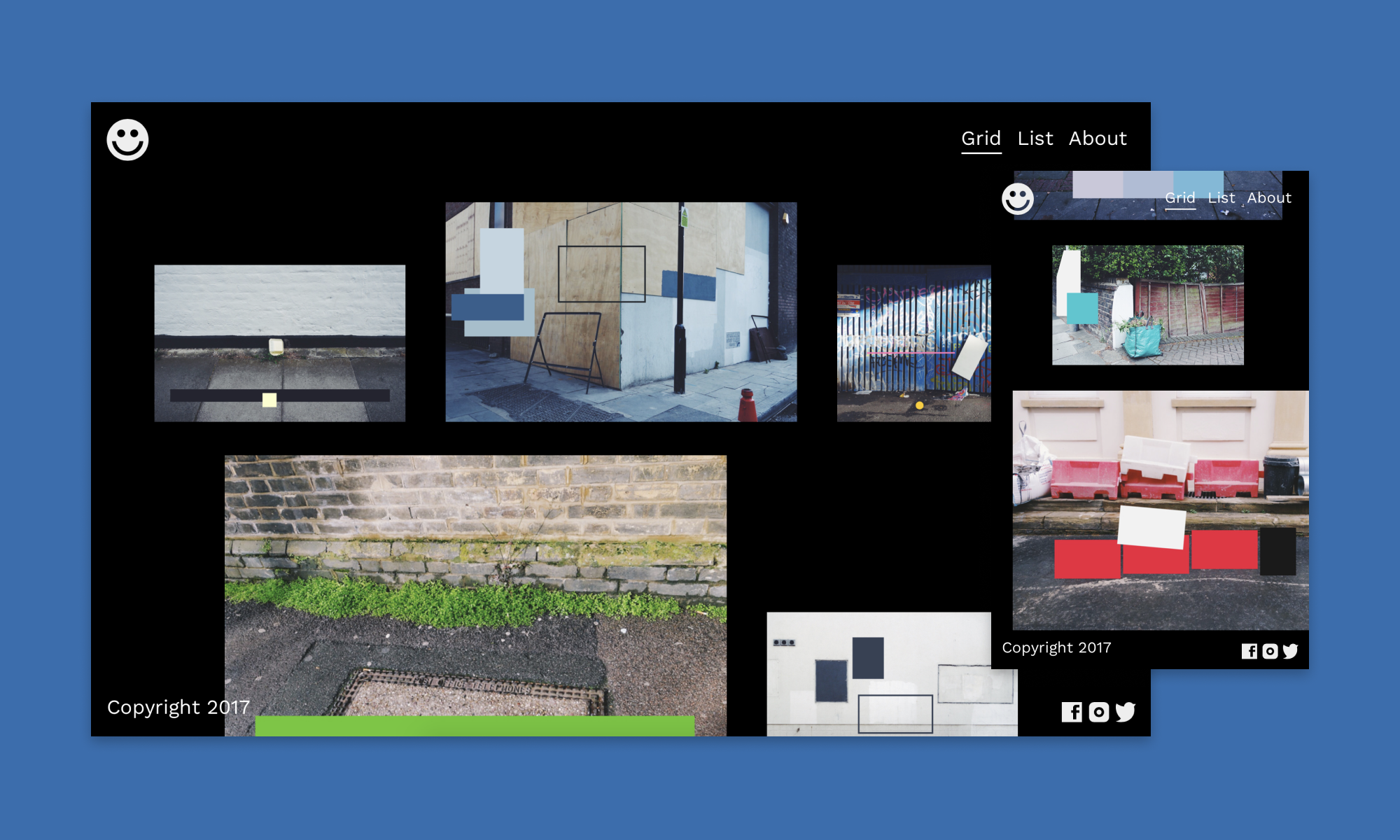
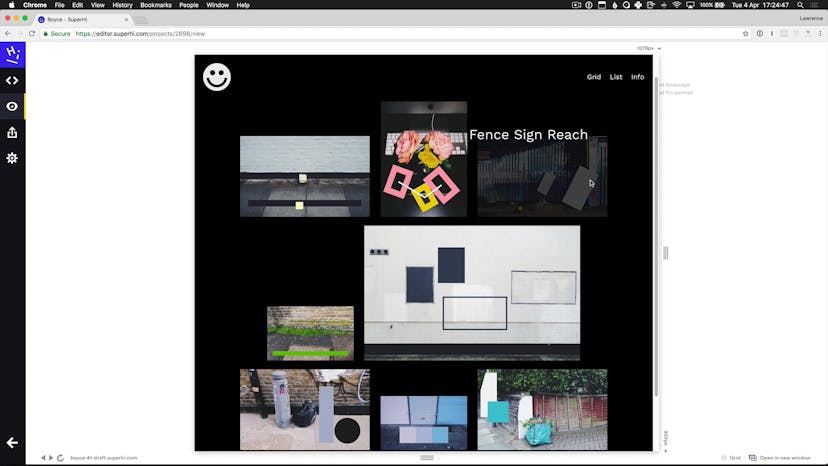
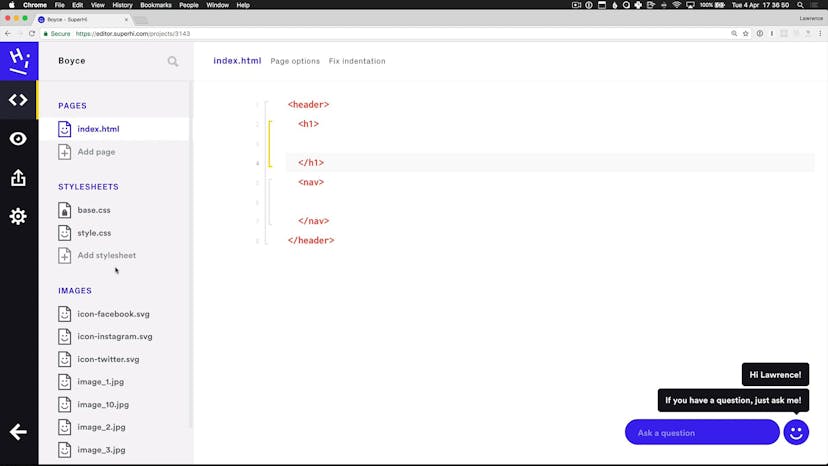
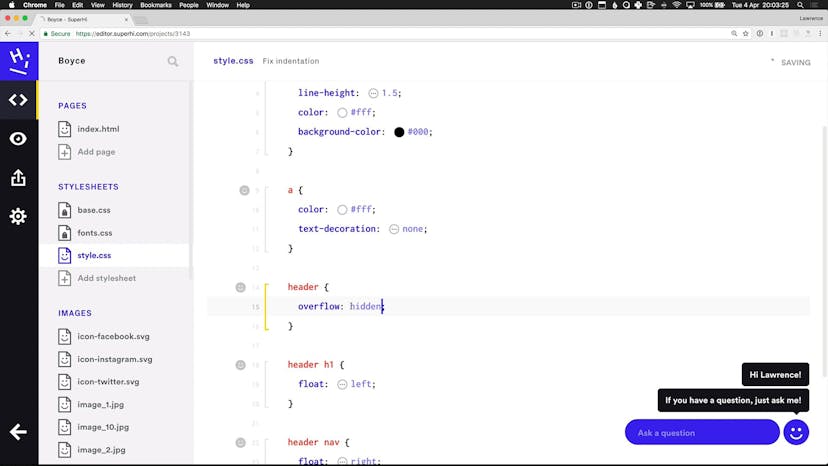

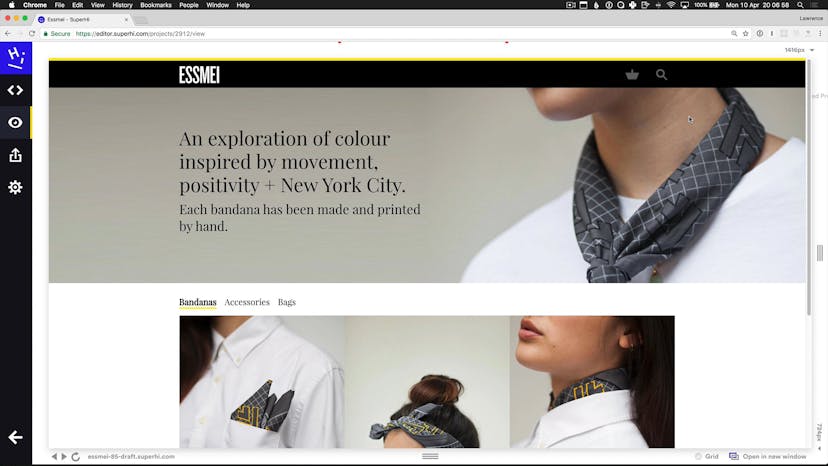
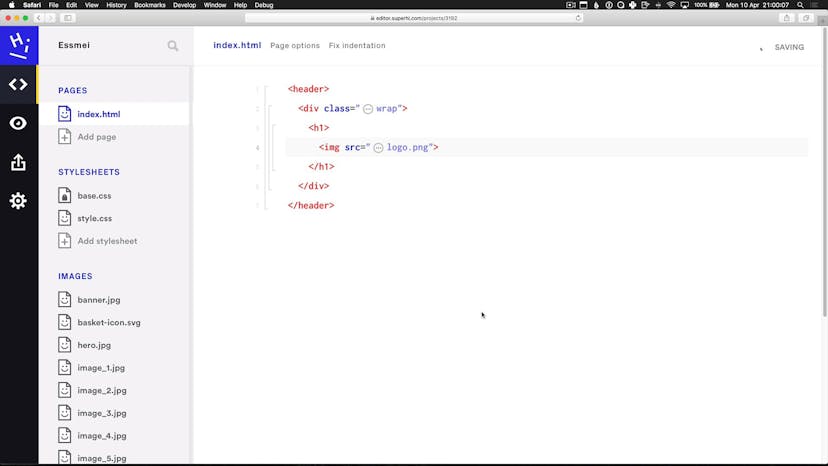
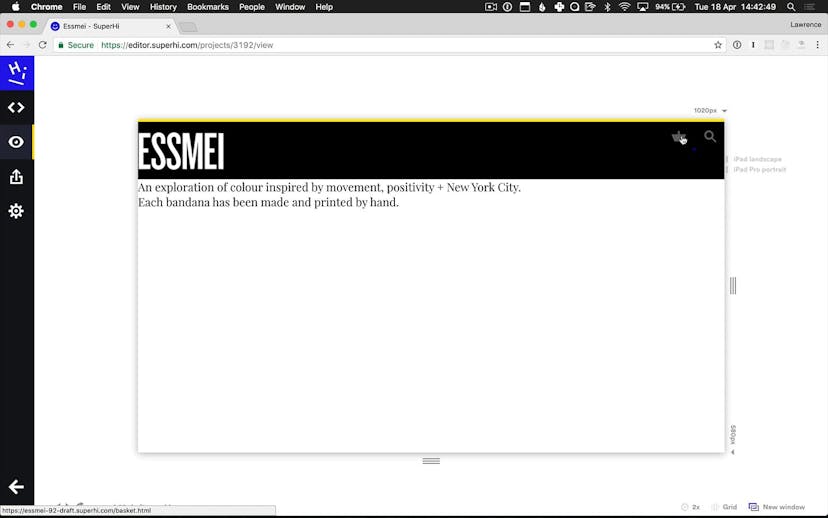
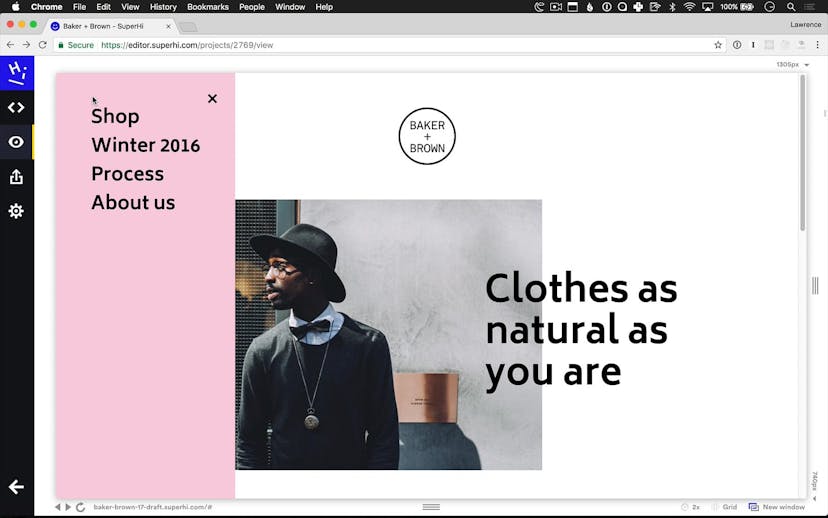
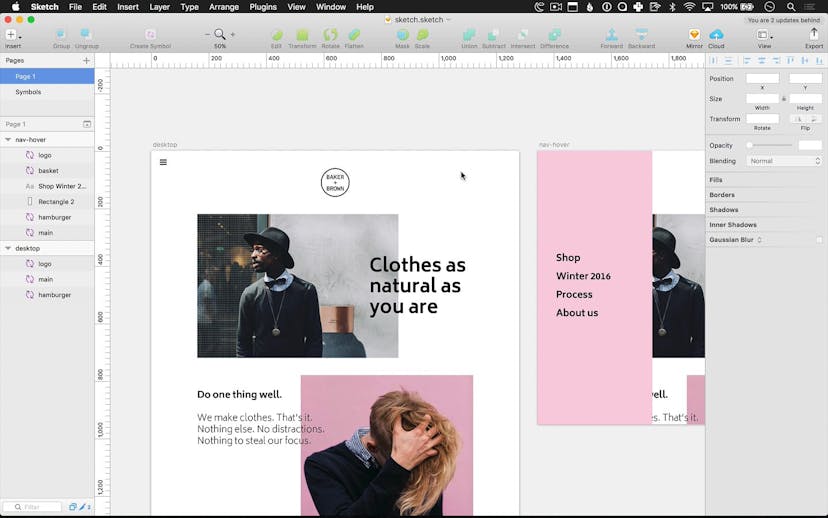
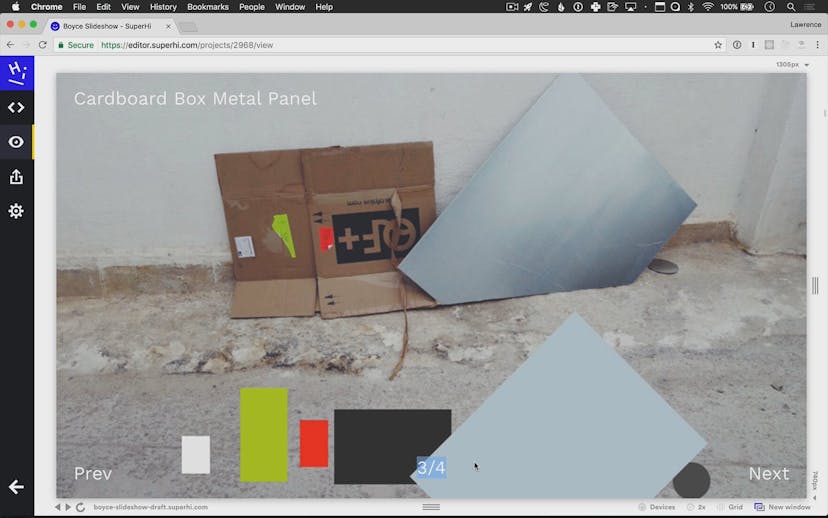
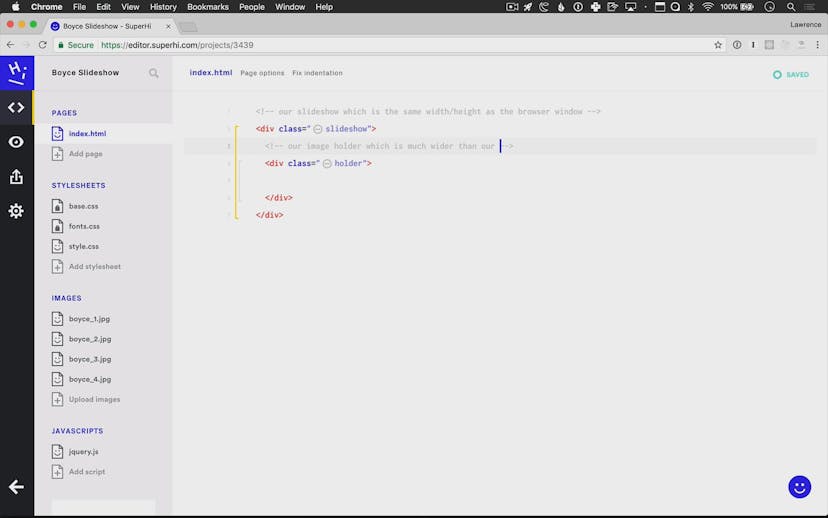
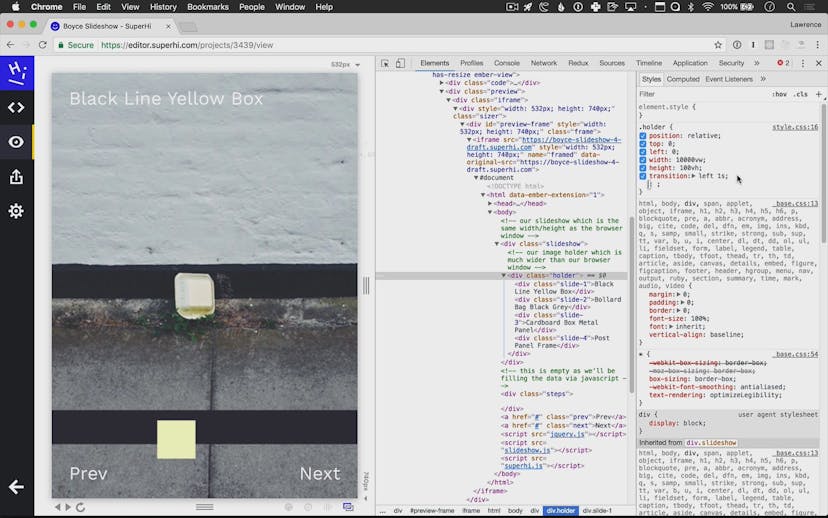
Get access to Foundation HTML, CSS + Javascript
- Practical, go-at-your-own pace learning, with help from our industry experts and experienced teachers
- Projects and code that you can alter and include in your own sites and portfolio
- Resources to get you started and going post-course
Your instructors

Lawrence Gosset

Rik Lomas
Course structure
Lesson 01
What is the World Wide Web?
Lesson 02
What is SuperHi?
Lesson 03
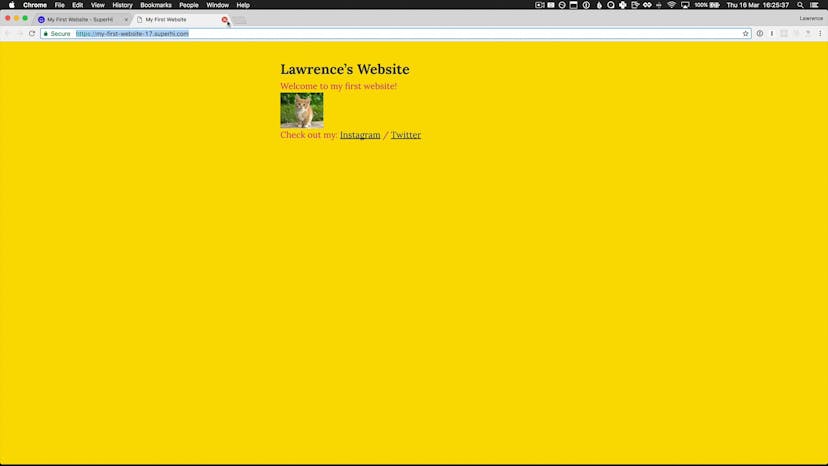
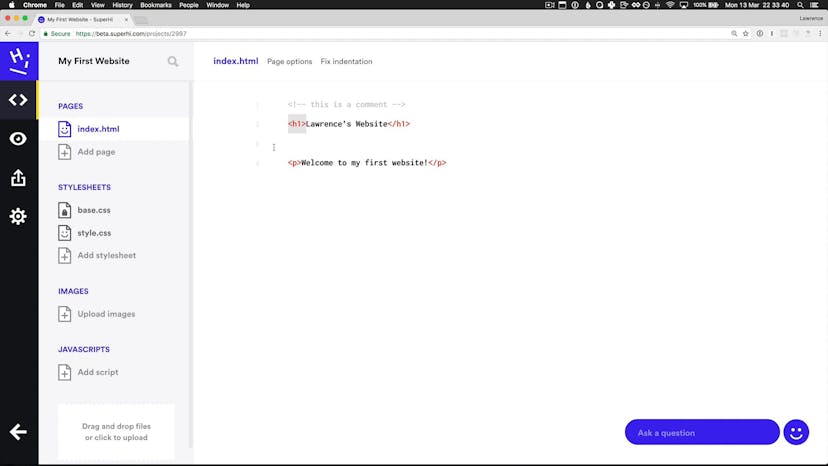
Writing our first HTML
Lesson 04
Writing our first CSS
Lesson 05
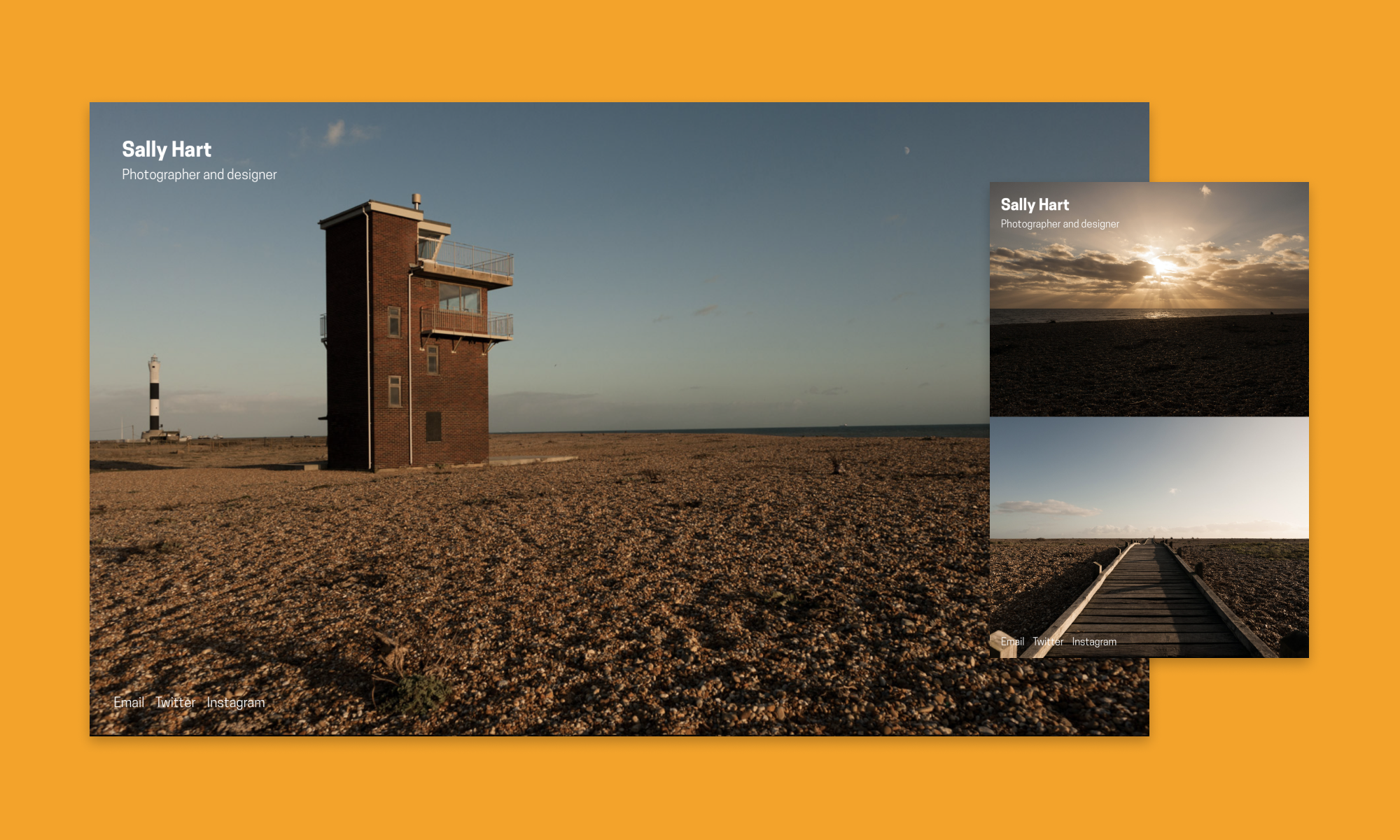
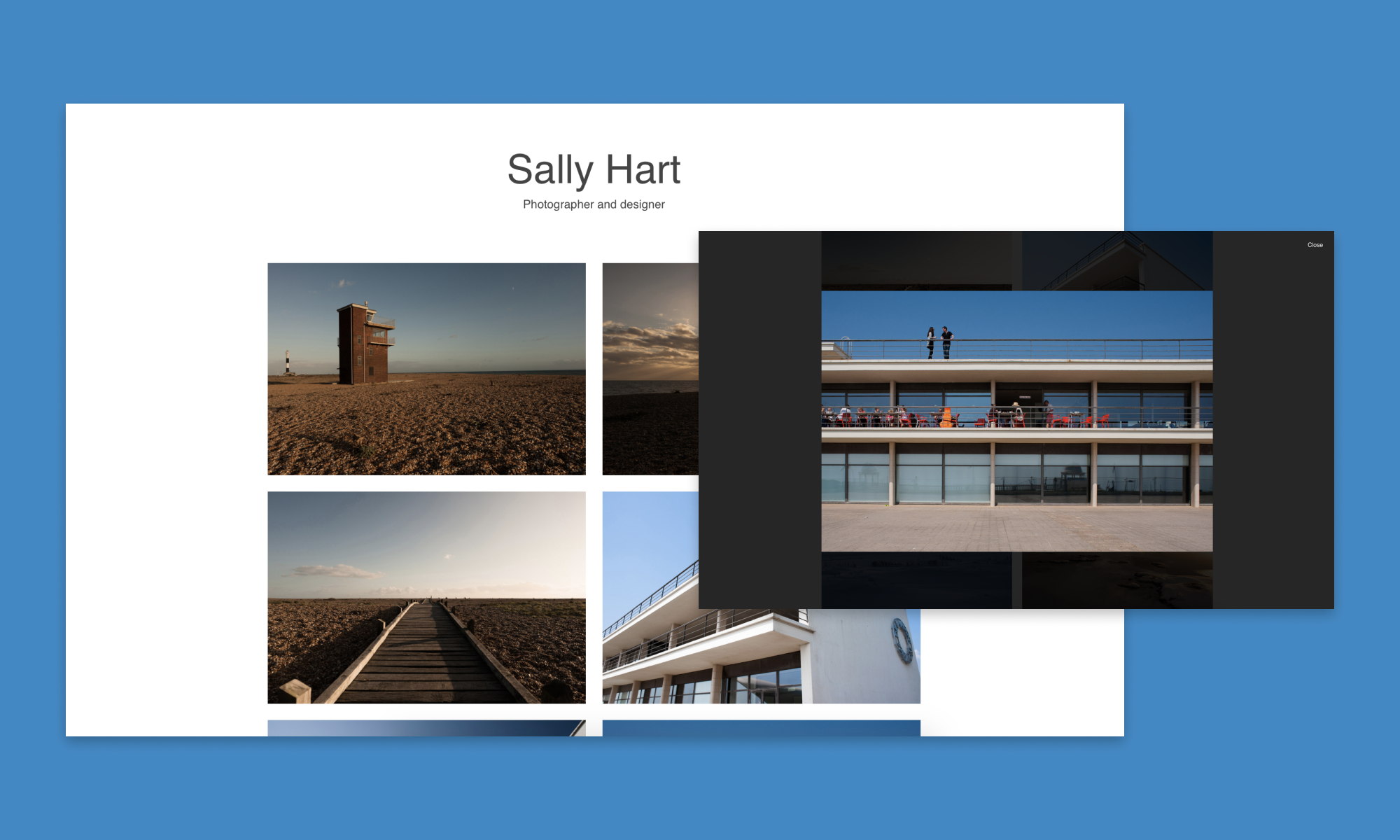
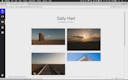
Sally Hart Photography Part 1
Lesson 06
Sally Hart Photography Part 2
Lesson 07
Sally Hart Photography Part 3
Lesson 08
Sally Hart Photography Part 4

Homework 01
The Pen Is Mightier Than The Sword

Lesson 01
Project overview and initial HTML
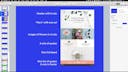
Lesson 02
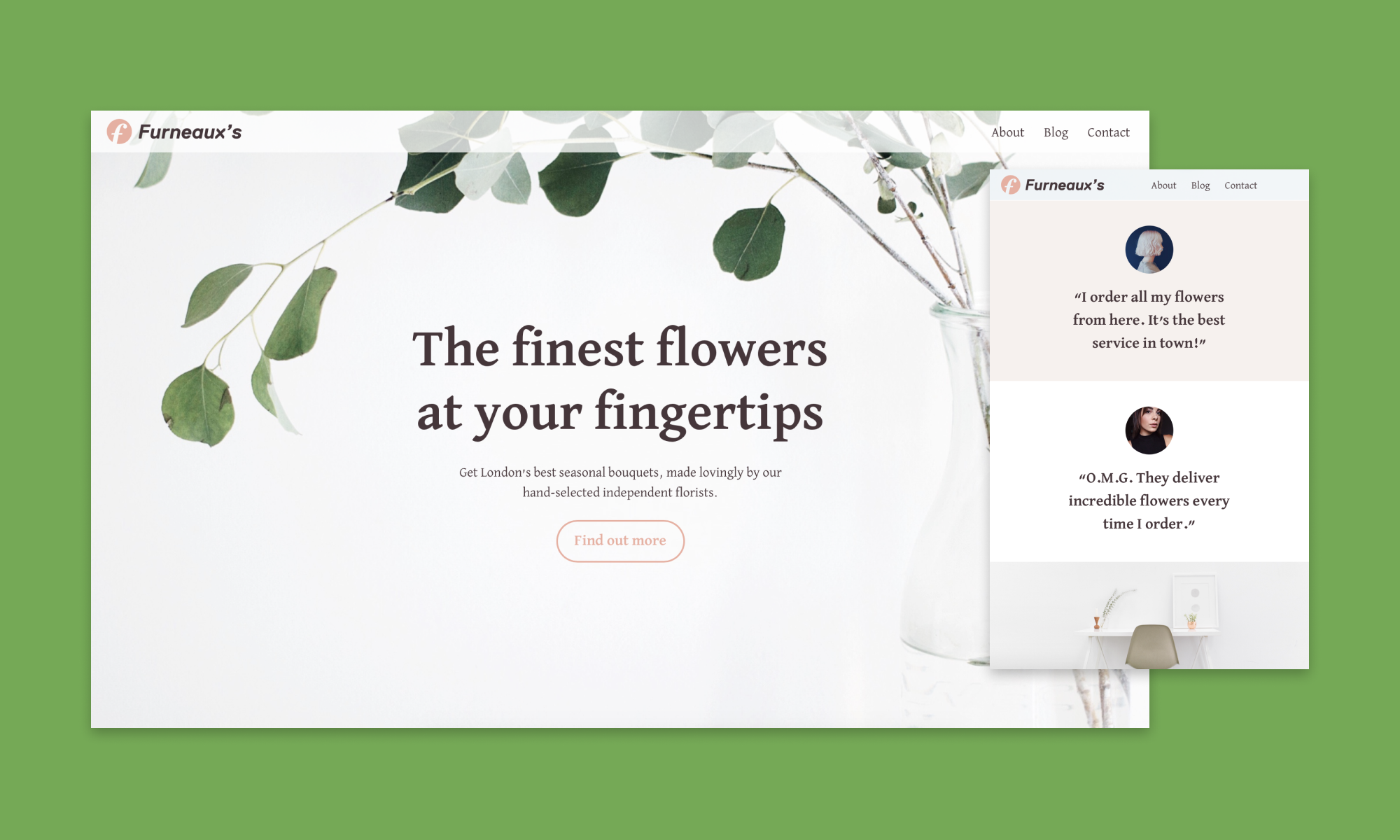
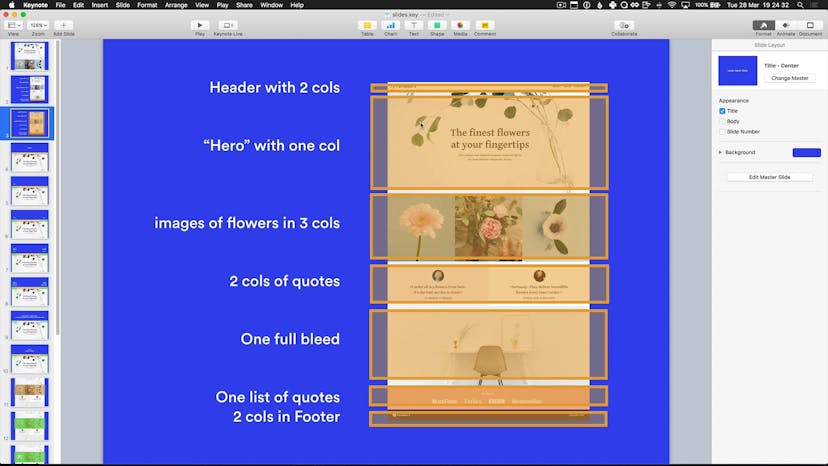
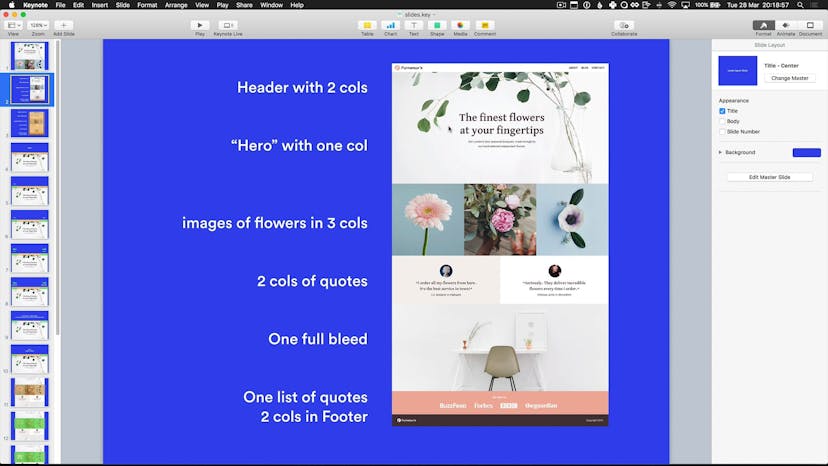
Header and hero section HTML
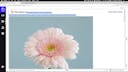
Lesson 03
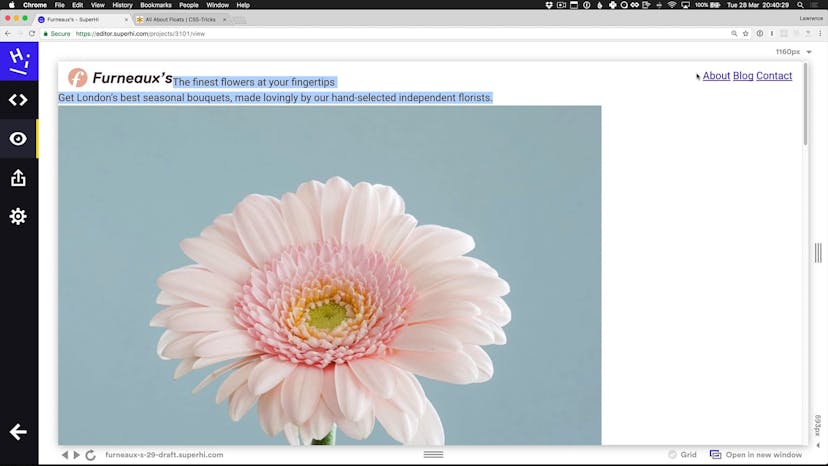
Getting content into columns using CSS floats
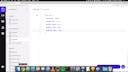
Lesson 04
Using background-position and vertically centering text
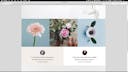
Lesson 05
Multiple columns using fluid percentage widths
Lesson 06
Remaining HTML and a quick look at symbols
Lesson 07
Styling up quotes sections
Lesson 08
Rounding corners using border-radius
Lesson 09
Sharing CSS classes between elements
Lesson 10
Figuring out responsive breakpoints
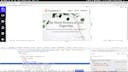
Lesson 11
Removing floats and responsive styles
Lesson 12
Responsive styles and hiding elements
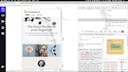
Lesson 13
Adding multiple media queries and fine tuning
Lesson 14
Styling specific elements using nth-child
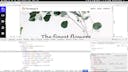
Lesson 15
Fixing the header and using drop shadows
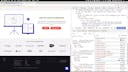
Lesson 16
Using the Chrome developer tools to inspect websites
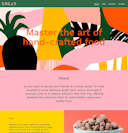
Homework 01
Lola’s Cookery School
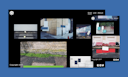
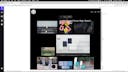
Lesson 01
Project overview
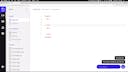
Lesson 02
Initial HTML
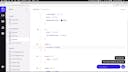
Lesson 03
HTML continued and initial CSS
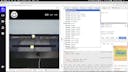
Lesson 04
Header position and active link style
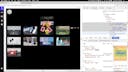
Lesson 05
Introducing inline-block elements
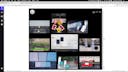
Lesson 06
Varied element widths using classes
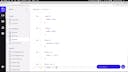
Lesson 07
Footer styles
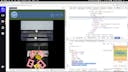
Lesson 08
Header styles using flexbox
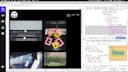
Lesson 09
Photo grid styles using flexbox
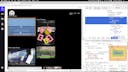
Lesson 10
Positioning elements using absolute position
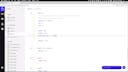
Lesson 11
Changing element and color opacity
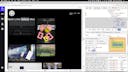
Lesson 12
Offset absolute position using negative values
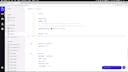
Lesson 13
Smoothly transitioning CSS properties
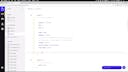
Lesson 14
Changing element layer order using z-index
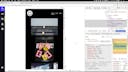
Lesson 15
Responsive tweaks using flexbox
Lesson 16
Hover transitions for navigation links
Lesson 17
Adding character to transitions using timings
Lesson 18
Grayscale image transitions using CSS filters
Lesson 19
Adding the list view page and initial HTML
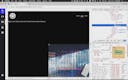
Lesson 20
List view hover effect image styles
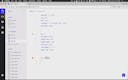
Lesson 21
Adding list separators using CSS content
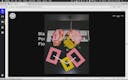
Lesson 22
List image hover effect using transitions
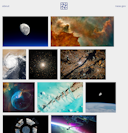
Homework 01
NASA

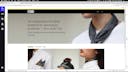
Lesson 01
Project overview
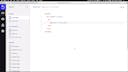
Lesson 02
HTML structure using outer and inner containers
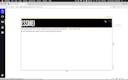
Lesson 03
Initial CSS and using 2x assets
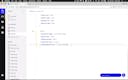
Lesson 04
Hero background positioning and copy column
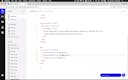
Lesson 05
Final navigation and products HTML
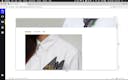
Lesson 06
Navigation and products style using flexbox
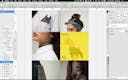
Lesson 07
Adding product overlay initial HTML and CSS
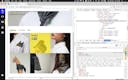
Lesson 08
Positioning the overlay using absolutes and rgba
Lesson 09
More playful hover effects using transition timings
Lesson 10
Initial breakpoint for tablet layout
Lesson 11
Responsive styles for tablet to mobile
Lesson 12
Mobile responsive styles
Lesson 13
Adding show filters link
Lesson 14
Using unordered list elements to style up the filters
Lesson 15
Final filter list style tweaks

Lesson 16
What is Javascript and jQuery?
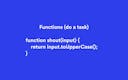
Lesson 17
What types of data do we have in Javascript?
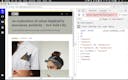
Lesson 18
Using the Chrome Javascript console
Lesson 19
Attaching our Javascript files to the page
Lesson 20
Showing and hiding content on the click event
Lesson 21
Building a navigation toggle using jQuery
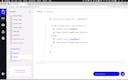
Lesson 22
Getting attributes and using variables
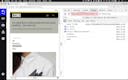
Lesson 23
Using the this keyword in Javascript
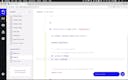
Lesson 24
Filtering the products selection using jQuery
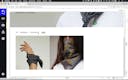
Lesson 25
Adding and removing the active link style
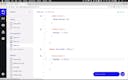
Lesson 26
Overriding CSS styles using !important

Homework 01
The Hexagons
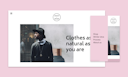
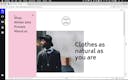
Lesson 01
Project overview
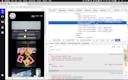
Lesson 02
A quick look at the head and body tags
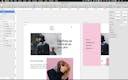
Lesson 03
Initial HTML
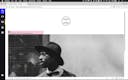
Lesson 04
Header and navigation slideout styles
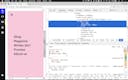
Lesson 05
Vertically aligning navigation using transforms

Lesson 06
Overlaid offset text effect using absolutes
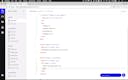
Lesson 07
HTML finishing touches
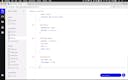
Lesson 08
Offset text overlay continued
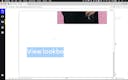
Lesson 09
Final lookbook section CSS
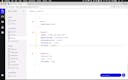
Lesson 10
Silky smooth rotate and scale transforms
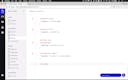
Lesson 11
Using translate, scale and multiple transitions on an element
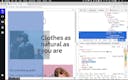
Lesson 12
Hamburger icon positioning and z-index
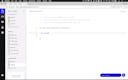
Lesson 13
Toggling CSS classes and states using jQuery

Homework 01
Valencia
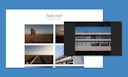
Lesson 01
Project overview
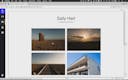
Lesson 02
Project setup
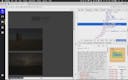
Lesson 03
Modal overlay CSS
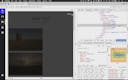
Lesson 04
Increasing clickable area and changing cursors
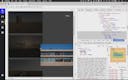
Lesson 05
Positioning modal content in the center
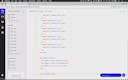
Lesson 06
Hiding the modal and adding script tags
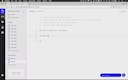
Lesson 07
Showing our modal on click and blocking default link action
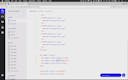
Lesson 08
Closing our modal using a separate function
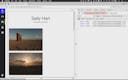
Lesson 09
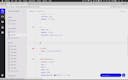
Getting and setting HTML and using the this keyword
Lesson 10
Using variables for setting the HTML
Lesson 11
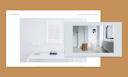
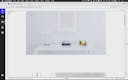
Making the design responsive
Lesson 01
Project overview
Lesson 02
Project setup
Lesson 03
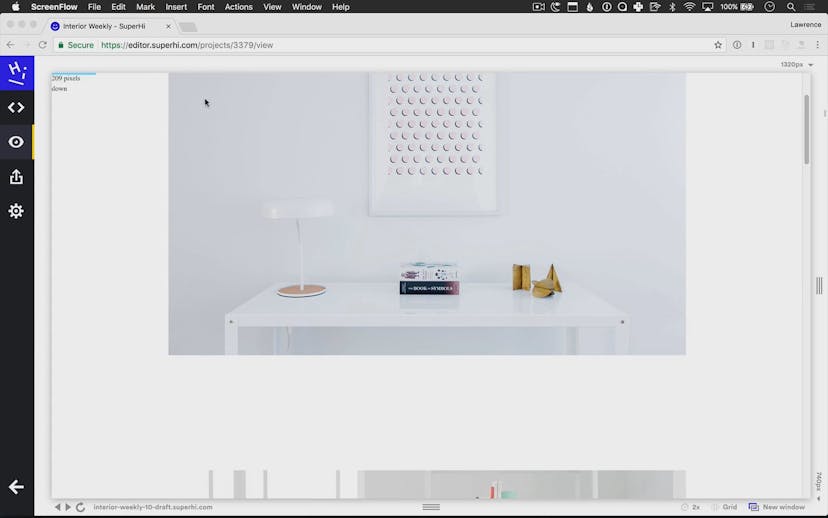
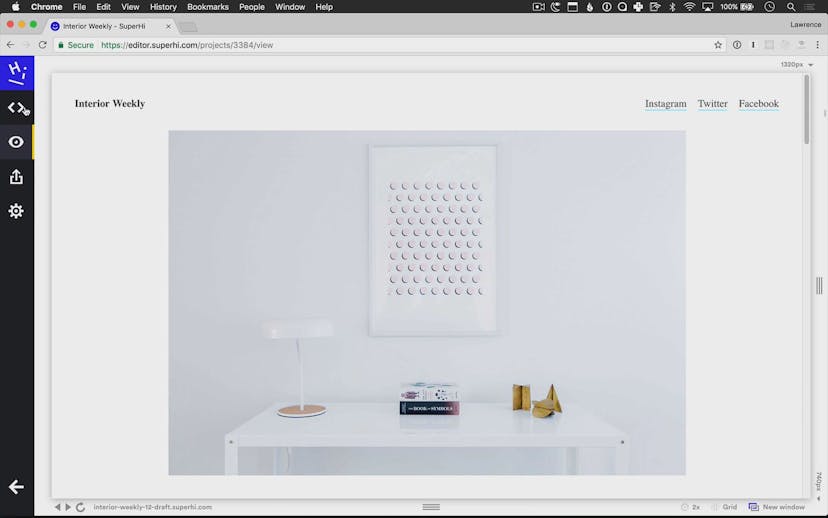
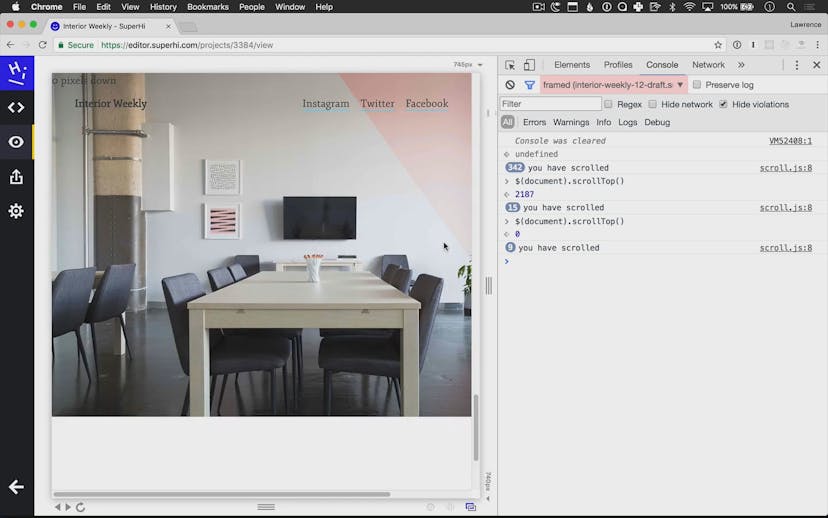
Building a scroll function that counts the pixels to top
Lesson 04
Hiding and showing the header on scroll
Lesson 05
Setting the background color on scroll using extended if/else statements
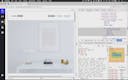
Lesson 06
Progress bar HTML and CSS
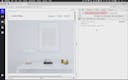
Lesson 07
Setting the bar CSS using jQuery
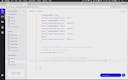
Lesson 08
Figuring out how far down the page we have scrolled
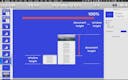
Lesson 09
Setting the bar width dynamically
Lesson 01
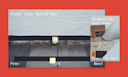
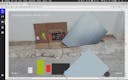
Project overview
Lesson 02
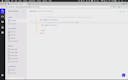
HTML structure
Lesson 03
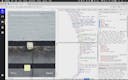
A look at the CSS
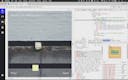
Lesson 04
What does overflow do?
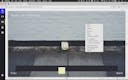
Lesson 05
Initial transition using interval functions
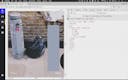
Lesson 06
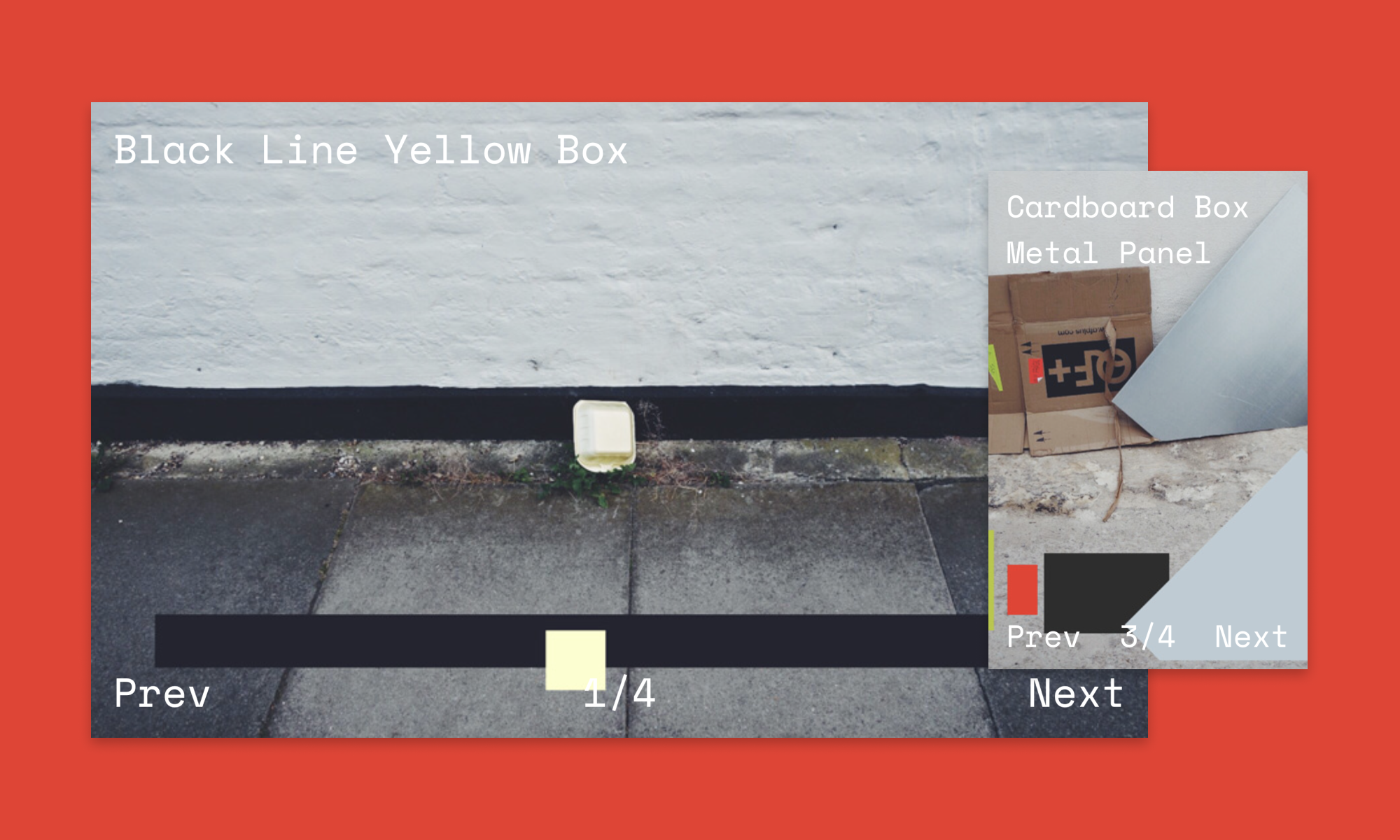
A little bit about arrays in Javascript
Lesson 07
Moving to the next slide dynamically
Lesson 08
Putting the slide functionality into separate functions
Lesson 09
Finding how many slides we have using .length
Lesson 10
Wiring up the prev/next buttons and cancelling intervals
Lesson 11
Setting the text for our current slide
Lesson 12
Making the slideshow loop through
Lesson 13
Passing data to functions using arguments
Lesson 14
Creating a function for moving the slide
Lesson 15
Making the arrow keys work for navigation
SuperHi students work at the best
Our students are based all over the world and work at creative companies large and small. Why not check out some of their work?
View student workFeeling stuck?
Don’t worry, we are here to help you with:
- Speedy help from one of our team members
- Detailed, relevant solutions
- Direct access to peer support through Discord!
Remember, there’s no such thing as a silly question, so don’t hesitate to reach out, we love hearing from you!